
Troubleshooting: What to Do When Your All-in-One Touch Screen Stops Responding
2026-10-19
It can be frustrating when your all-in-one touch unit suddenly loses touch functionality during operation. Before concluding there is a major hardware fault, please follow these three-step troubleshooting guide for quick diagnosis.
Step 1: Full power-cycle to eliminate static and external interference Disconnect all external USB and serial port devices. Cut off power to the touch all-in-one unit for 30 seconds, then power it back on. Note: Perform a complete power cut by unplugging the power cord, instead of simply restarting the system. Temporary touch failure is often triggered by static electricity or external signal interference. A full power-off helps release such interference and may restore normal touch performance directly.
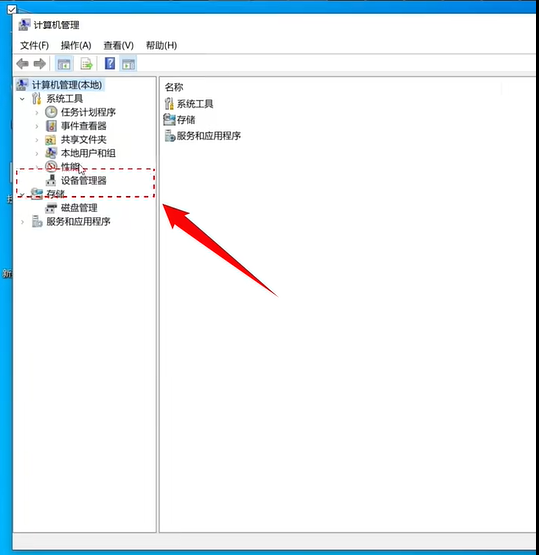
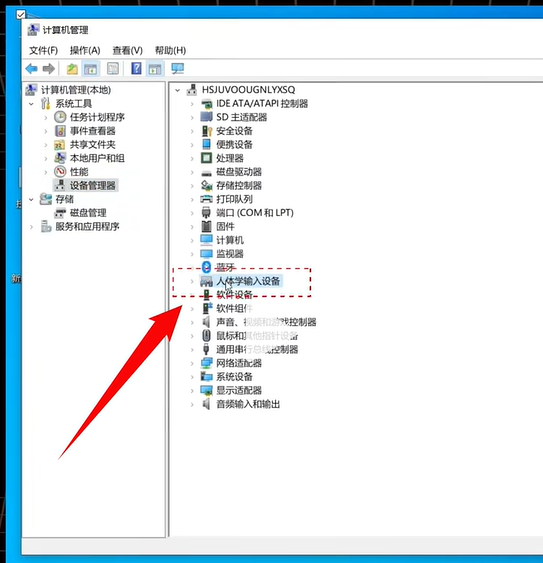
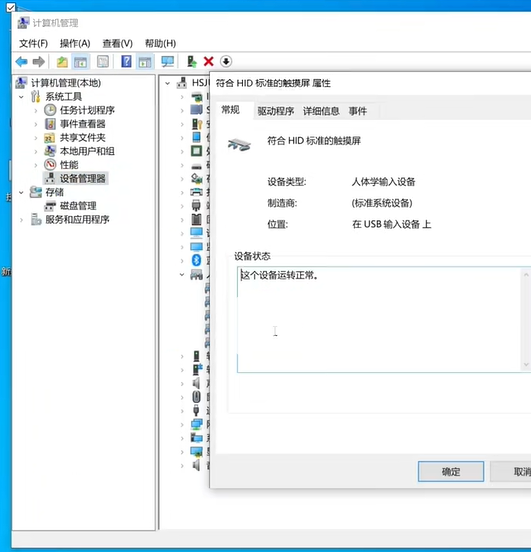
Step 2: Check touch hardware connection if the issue remains If touch still does not work after full power cycling, connect a mouse to open Device Manager. Check Human Interface Devices to confirm whether the HID-compliant touch device is detected. You may also go to System Properties and verify the message: No pen or touch input is available for this display. If touch hardware is not recognized, open the rear cover and re-seat the touch cable. Vibration during transportation may loosen the touch connector and cause touch failure.
Step 3: Special system adjustment for Linux / Mac OS If you are running special operating systems such as Linux or Mac, touch protocols and configuration settings differ from Windows. Please contact our technical team for touch parameter debugging.
Most touch-related malfunctions can be quickly located and resolved by following the above steps. If problems persist after all checks, feel free to reach out to our support team for further assistance.
Common LCD Display Interfaces Explained | Quick Industry Guide
Related Article

Selecting the proper LCD interface is vital for kiosks, industrial panels and embedded display projects. This article systematically explains ten widely adopted LCD interfaces including MIPI, LVDS, RGB, MCU, SPI, I2C, VGA, USB, eDP and UART, helping engineers quickly identify the best interface solution for their display integration.
Common LCD Display Interfaces Explained | Quick Industry Guide